
Create Rules
Overview
Create Rules creates a new iLogic rule (or runs rule text) across many components in an assembly. Use it when you need to deploy new automation quickly, standardize rule logic across a project, or run a block of rule text on multiple components without manually editing each file.
How It Works
Create Rules processes each target component using the selected command. Sync commands ensure the named rule exists in the component and that its text matches the rule text you entered. Sync and Run also executes the rule after syncing. Run Only executes the entered rule text directly without creating or updating a rule in the component.
Targets can be selected interactively, from the current selection set, or by processing all components based on filtering options such as component type, nesting level, and optional name filtering. Processed components are added to the selection set for review.
Context Menus
The following input provides a right‑click context menu and a small button beside the input. Both open the same selection dialog.
- Rule Name: Opens a list of rule names. You will be prompted to pick a component first. The dialog then lists the rules available in that component. Select one or multiple rules and click OK to insert them as a comma‑separated list.
This picker is useful for copying an existing rule name accurately. When using Sync commands, the Rule Name must be a single name.
Usage Instructions
- Open an assembly.
- Start Create Rules.
- Enter a Rule Name (not required for Run Only).
- Enter the Rule Text to copy and/or run.
- Select the Command (Sync and Run, Sync Only, or Run Only).
- Choose how to select target components and configure filtering. Use Preview to highlight targets.
- Click Apply to run and review the results.
Troubleshooting
- Apply is disabled: Enter rule text. For Sync commands, also enter a non-empty rule name. If Selection Set is selected, ensure the selection set contains components.
- Rule does not run: Verify the rule text is valid iLogic code and that required parameters/iProperties exist in the target components.
- Rule name conflicts: If the component already contains a rule with the same name, Sync will update that rule’s text.
- Unexpected results across components: The same rule text may behave differently depending on component type, parameters, and document context.
Examples
Example: Deploy a new standard rule and run it
Enter the Rule Name and Rule Text, then use Sync and Run to ensure the rule exists and executes immediately in the selected components.
Example: Update a rule definition without running it
Use Sync Only when you want to push updated rule text but do not want to execute it as part of the batch operation.
Example: Run a one-time script
Use Run Only to execute rule text without creating a rule inside each component.
Dialog Box Input
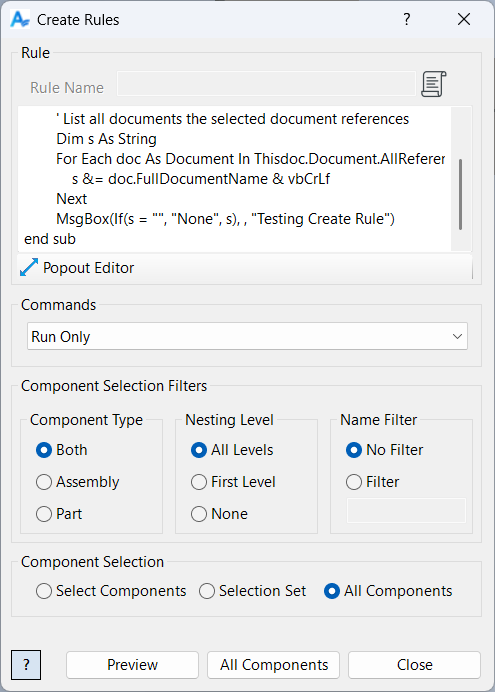
Rule Name
Enter the rule name to create or sync (not used for Run Only).
Rule Text
Enter the iLogic rule code to run and/or copy into each target component.
Command
Choose Sync and Run, Sync Only, or Run Only to determine how the rule text is processed.
Component Selection
Select components to process. Use filtering options as described in Filtered Select.
